
Seafisheries landings dashboard
The statistics found on this page provide an overview of Canadian seafisheries landings. A landing refers to the part of the fish catch that is put ashore. Information covers both quantity and value of commercial fish landings in Canada from 1990 to 2024.
On this page
Methodology
Data are collected by Fisheries and Oceans Canada's (DFO) regional offices under the authority of the Fisheries Act. Due to the nature of the fishing industry, data provided may be modified later, should new information be provided to DFO. The data generated by DFO’s regional offices is processed, standardized, and aggregated by the Statistical Services Unit at DFO national headquarters. Data are organized by species groups, by main species and by province. Users should contact infostat.XNCR@dfo-mpo.gc.ca for further information and detailed questions related to the use of this information.
Open data
Information found on this page can also be downloaded from Commercial Fisheries - Seafisheries Landings - Canada - Open Government Portal.
User guide
User guide – Power BI dashboard
Summary
The interactive dashboard is designed to help users explore fisheries landings data through dynamic tables, charts and maps.
Begin by selecting one of the main tabs (Overview, Quantity, Value or Map), each of which presents the same dataset in a different format to support analysis.
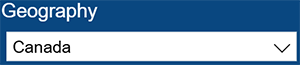
To refine the data, use the dropdown filters or slider available on the dashboard. These allow you to select variables such as geography, species group, species or year. After selecting your criteria, the dashboard will automatically adjust to reflect your selections. You can sort or reorganize the displayed data by interacting directly with column headers or legends. Many visuals also support hover functionality, where placing your cursor over a data point reveals additional details and precise values.
How to use the interactive visual
- Overview tab: Provides a high-level summary of the fisheries landings dataset, displaying key indicators and aggregated statistics to give users a quick snapshot of overall value and quantity by year before exploring more detailed data on other tabs.
- Quantity tab: Focuses on physical volumes of fisheries landings, allowing users to analyze how much was landed across years, geographies, species groups or species.
- Value tab: Displays the value of fisheries landings data, enabling users to examine the dollar value of landings and compare across geographies, species groups or individual species, and years.
- Map tab: Presents the data geographically, showing fisheries landings statistics on an interactive map so users can visualize the geographical distribution of landed value and compare values across different provinces.
- Click on a chart element or category (for example, a specific species or year) to further filter the dashboard and focus on that subset of data. Other visuals on the page will update automatically to reflect the selection.
- Hover your cursor over bars, lines, or data points in the charts to display additional details such as the exact values and category labels.
- To compare trends, adjust the year or other filters and observe how the quantities change across time or between selected groups.
- Clear filters to return the dashboard to the default view and display the full dataset again.
| Icons | Directions |
|---|---|

|
Use the dropdown filters or slider to refine the dataset. |
 |
Use the Focus mode option to enlarge a chart or table for easier viewing and analysis. |
 |
Fit to page automatically scales the entire report so that all visuals and content fit within the browser window or screen, allowing users to see the complete dashboard without scrolling. |
 |
This setting adjusts the size of charts, tables and other elements proportionally. |
 |
The Share button allows users to send a link of the report to other users. |
 |
The Open in new window button allows users to launch the Power BI report in a separate browser window or tab, giving a larger standalone view of the dashboard for easier analysis or presentation. |
Keyboard shortcuts
Keyboard shortcuts
- Show Keyboard shortcuts: Shift + Question mark (?)
Across the product
- Move focus between sections: Ctrl + F6
- Move focus forward in section: Tab
- Move focus backward in section: Shift + Tab
Pane navigation
- Multi-select: Ctrl + Space
- Collapse a single table: Left arrow
- Expand a single table: Right arrow
- Collapse all tables: Alt + Shift + 1
- Expand all tables: Alt + Shift + 9
- Open a context menu: Windows context key or Shift + F10
On visual
- Move focus to visual menu: Alt + Shift + F10
- Show as table: Alt + Shift + F11
- Enter a visual: Ctrl + Right arrow
- Enter a layer: Enter
- Exit a layer or visual: Esc
- Select or unselect data point: Enter or Space
- Multi-select: Ctrl + Enter or Ctrl + Space
- Right Click: Windows context key or Shift + F10
- Show or hide data point tooltip: Ctrl + H
- Clear selection: Ctrl + Shift + C
Slicer accessibility
- Slicer control: Ctrl + Right arrow
Dashboard
Start of visual interaction
End of visual interaction
Source
Department of Fisheries and Oceans (2025). Statistical Services calculations based on data from regional offices.
Notes
- Some data points are suppressed to meet confidentiality requirements. These points are omitted from the visuals above.
- Totals may not add up due to rounding.
- Miscellaneous quantity excludes seal pelts.
Page details
- Date modified: