
Reporting lost gear while offline
When you are on the water, you may not always have access to the internet. These steps will allow you to save your lost gear report even when offline, and submit through the system when back online.
In order to use the offline reporting function, you need an active account and be logged in your account prior to leaving an area with an internet connection. If you do not have an account, please register before continuing.
On this page
- Saving the offline app – Android users
- Saving the offline app – Apple/iOS users
- Using the offline app to report lost gear
Saving the offline app – Android users
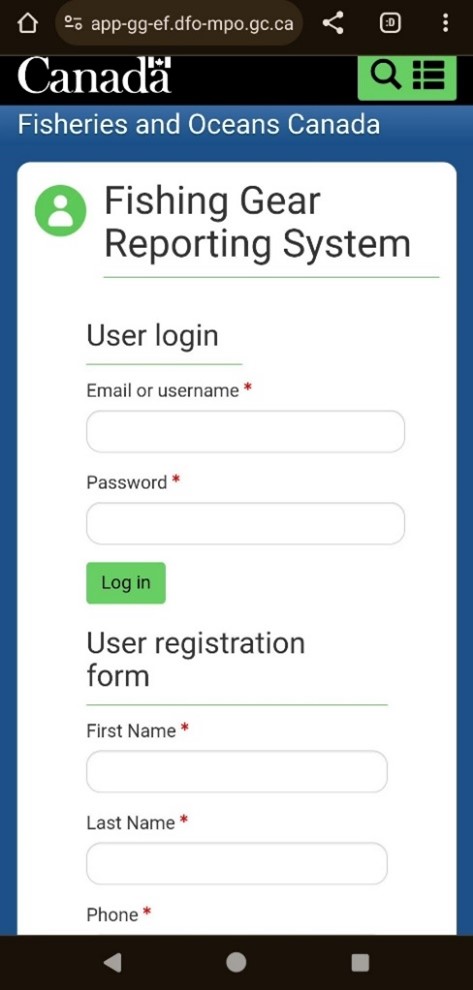
- Open your preferred browser and enter https://app-gg-ef.dfo-mpo.gc.ca/ in the navigation bar to access the Fishing Gear reporting System.
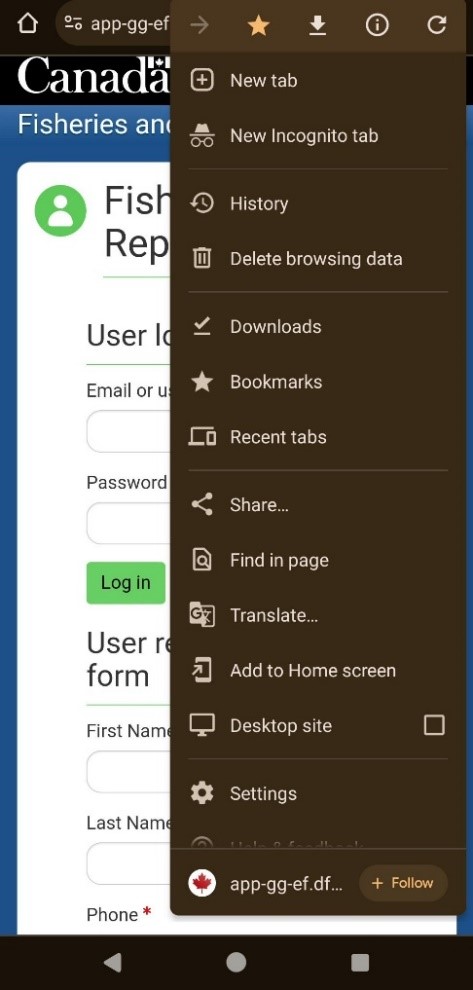
- Click on the menu list icon which are the 3 dots at the top right hand side of your screen.
- Click on “Add to Home screen.”
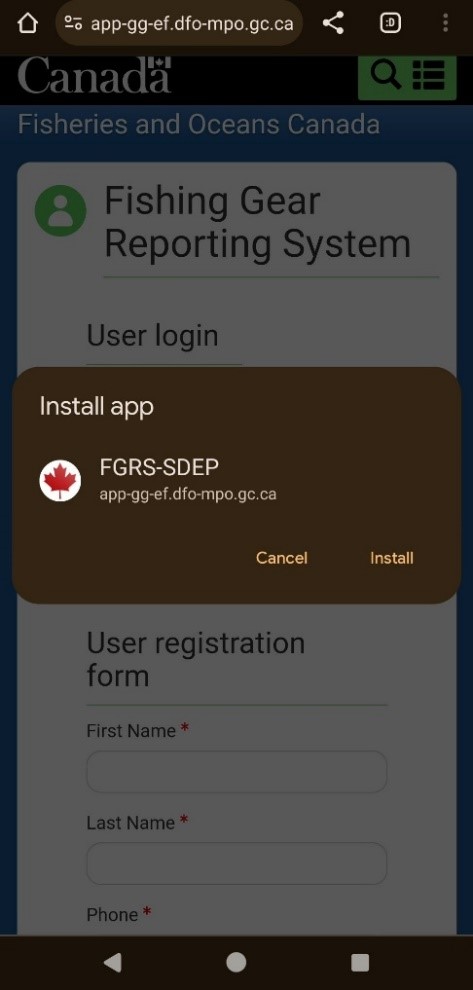
- A window will appear. Click “Install.”
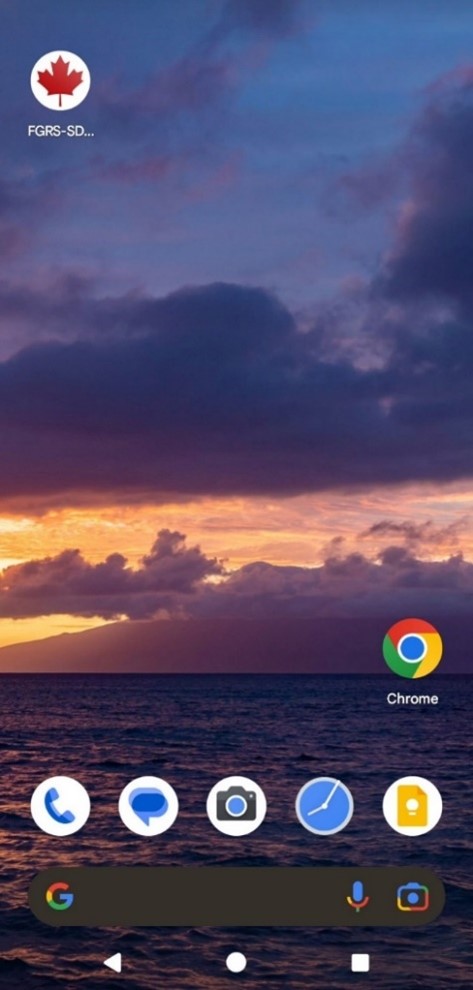
- You will now have quick access to the system from your home screen.
Saving the offline app – Apple/iOS users
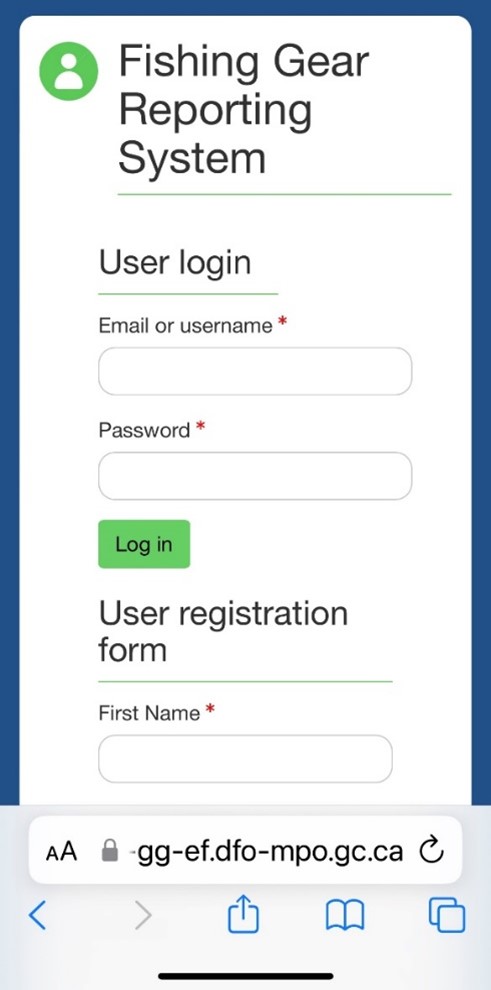
- Open your preferred browser and enter app-gg-ef.dfo-mpo.gc.ca in the navigation bar to access the Fishing Gear reporting System.
- Navigate to the share icon at the bottom of your screen, this is the blue box with an upwards pointing arrow.
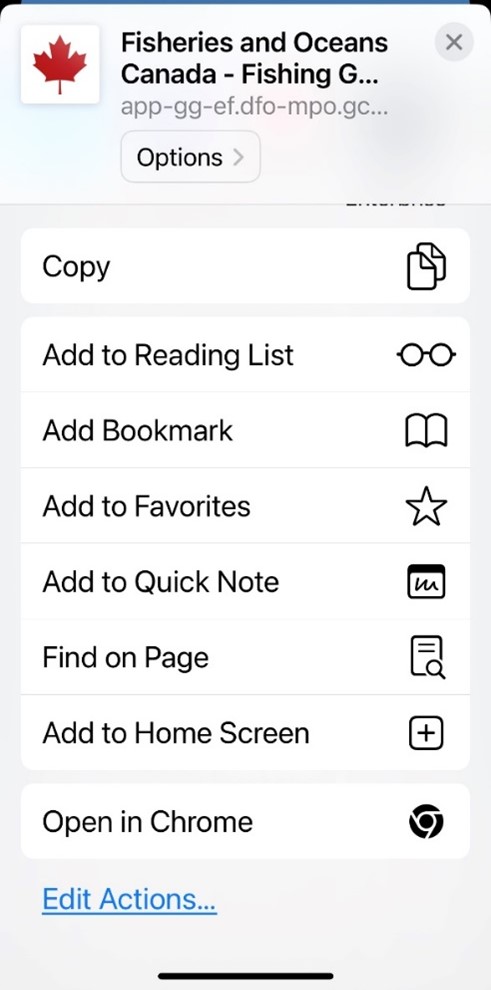
- Next, click on “Add to Home Screen” at the very bottom of your screen.
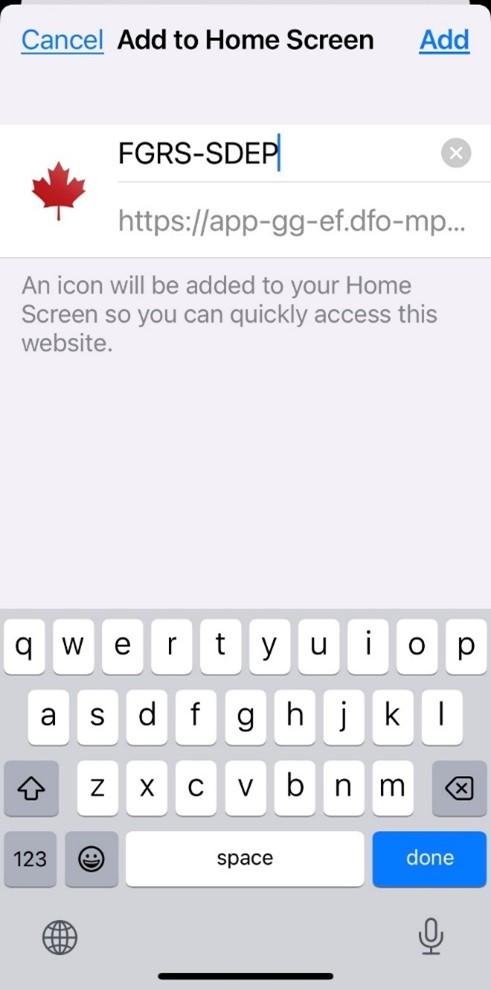
- Click on “Add” at the top right hand corner of your screen.
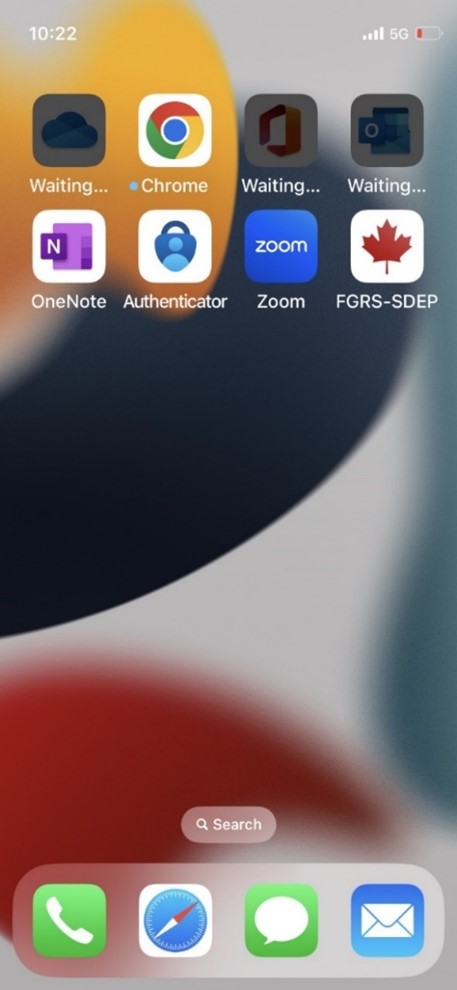
- You will now have quick access to the system from your home screen.
Using the offline app to report lost gear
Once the app is installed, log in to your account using your username or email and password.
Ensure you are logged in your account prior to leaving an area with an internet connection. You will not be able to log in your account if you are already in an area without a connection.
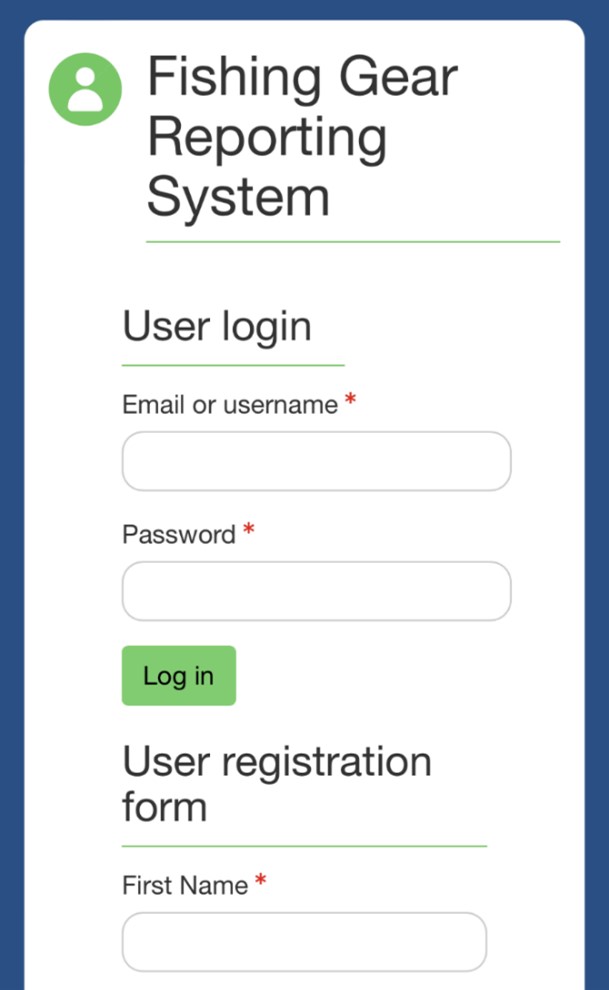
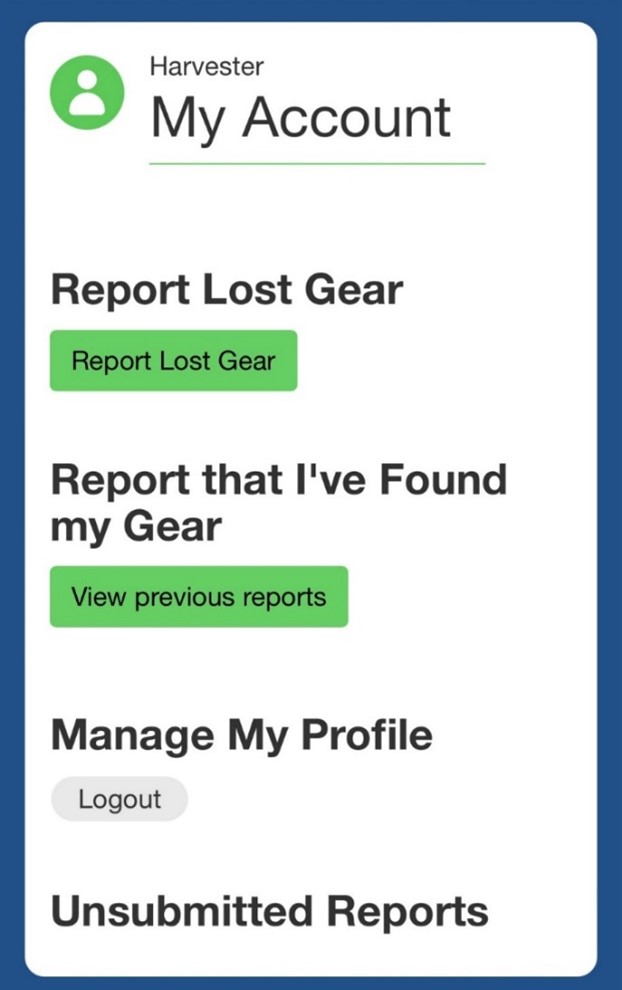
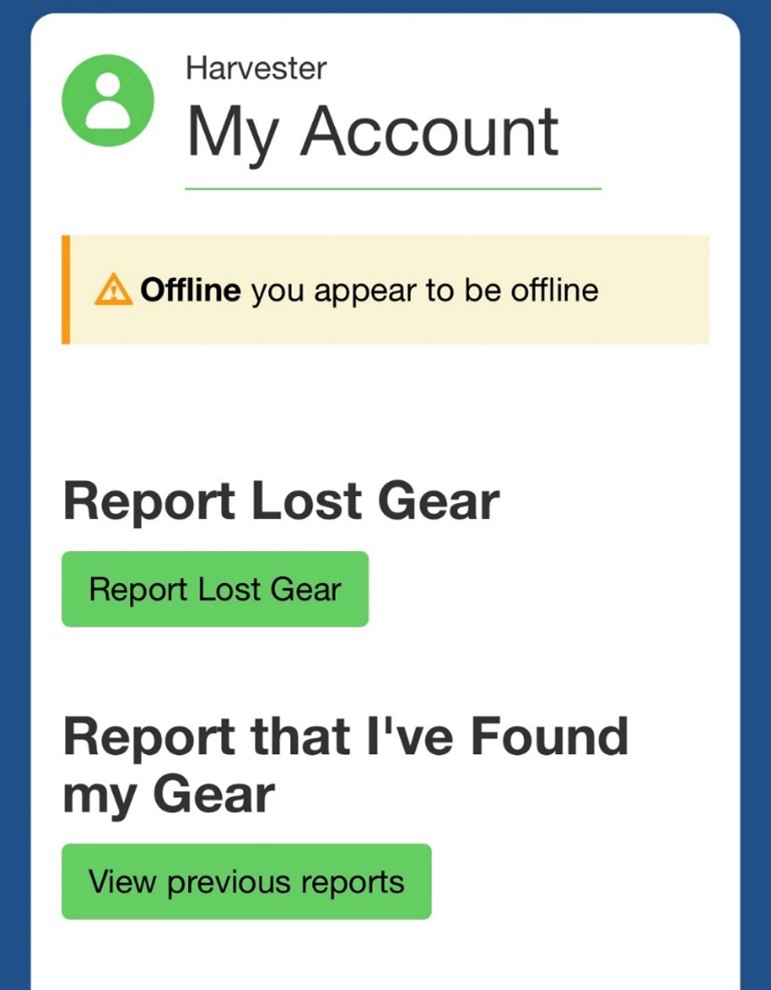
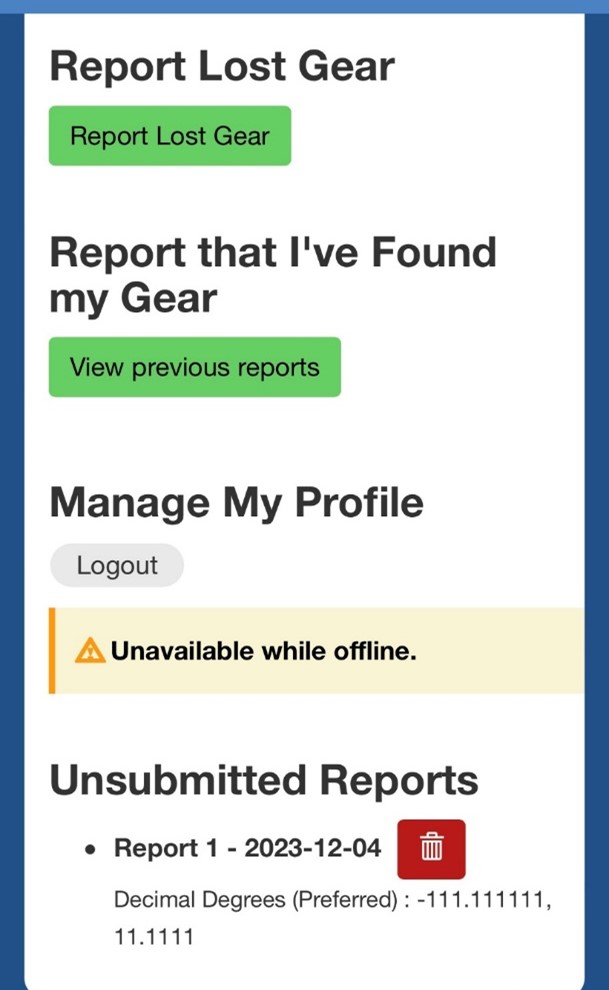
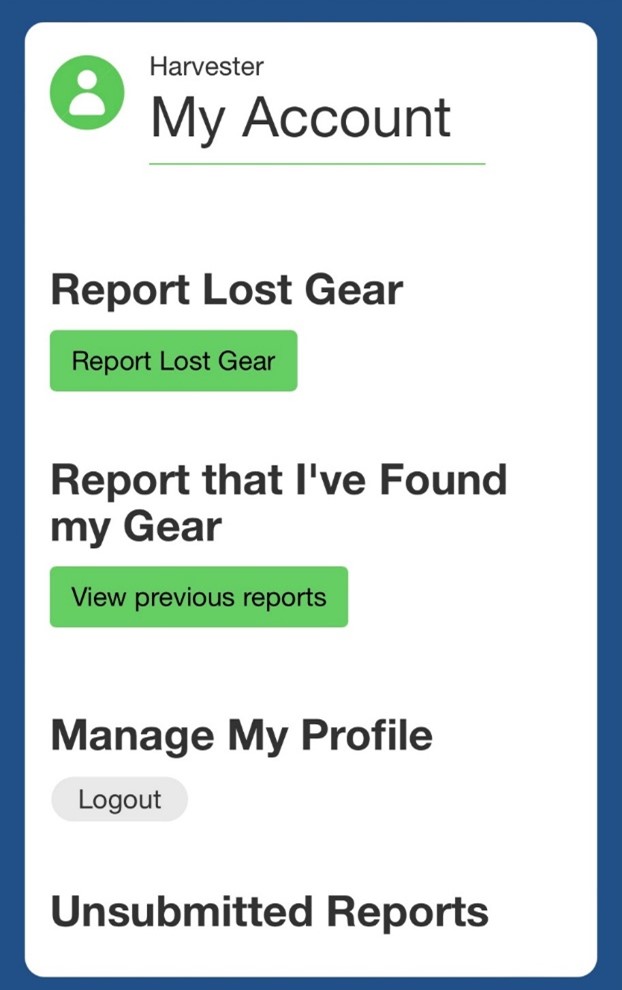
When logged in and entering an area without a network, a warning message will appear on the “My Account” page indicating you are offline. Don’t worry, you are still able to create and save a report offline.
To create a new lost gear report, select “Report Lost Gear” and proceed in entering the information and coordinates as prompted on the screens.
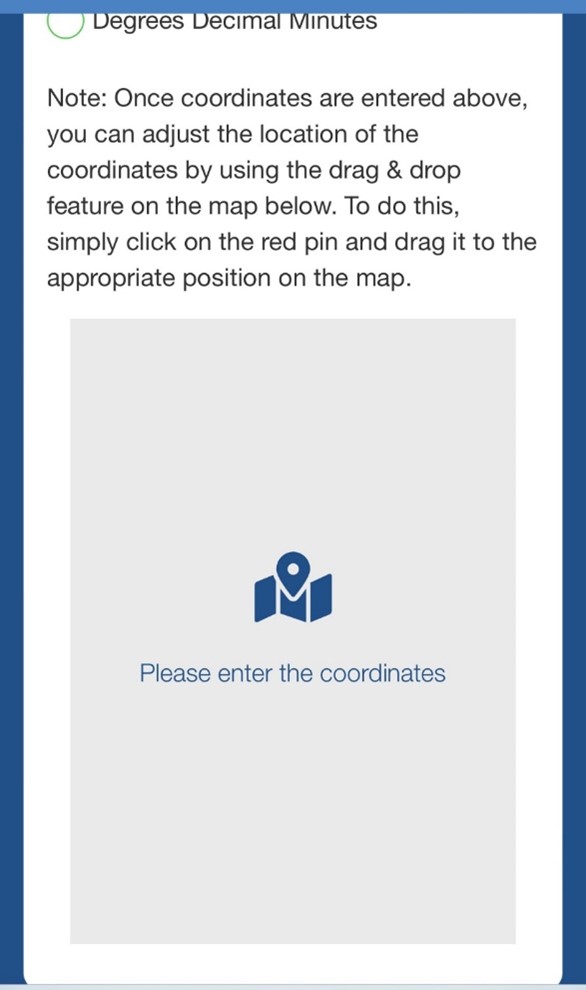
Note: When you get to page 2 “where did you lose your gear,” when entering coordinates while offline, the pin on the map will not appear to confirm the location of lost gear. Please ensure your coordinates are correct before proceeding as you will not be able to confirm the location using the map.
Saving your report
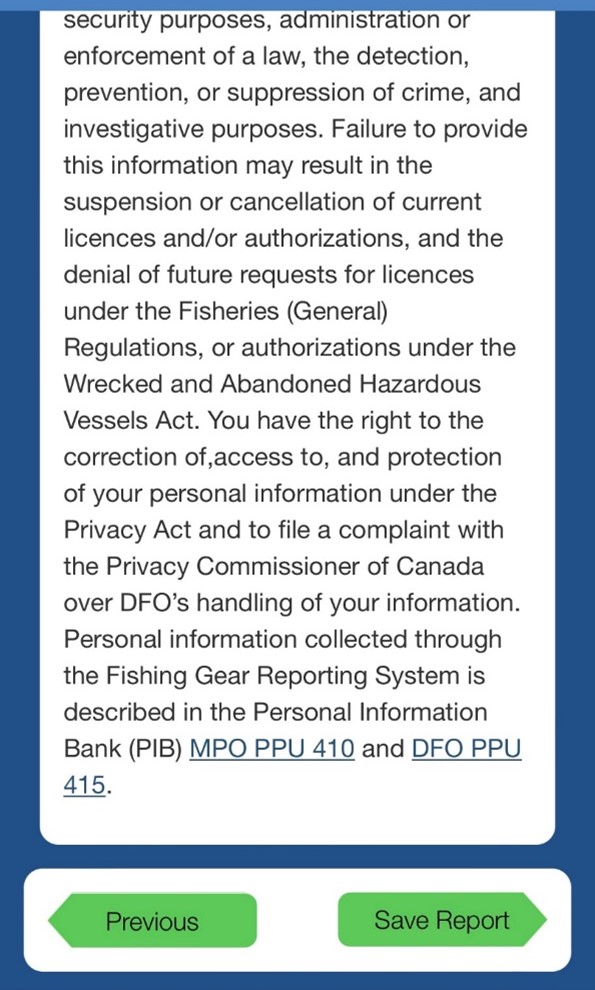
Once all lost gear information in entered and ready to submit, since you are offline, you will be prompted to save instead of submit. The save report button will be at the bottom right of the page.
Viewing unsubmitted reports
To find your saved report, go to “My Account” under “Unsubmitted Reports.”
Submitting saved reports
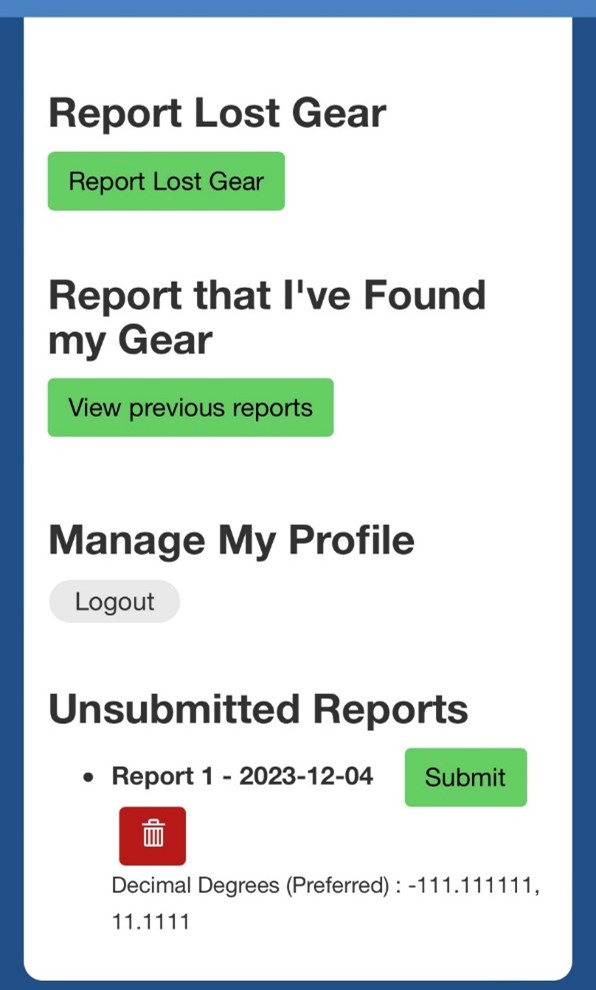
Once you reenter an area with an internet connection, a submit button will appear under “Unsubmitted Reports.” To submit your saved report, select the submit button next to your saved report(s).
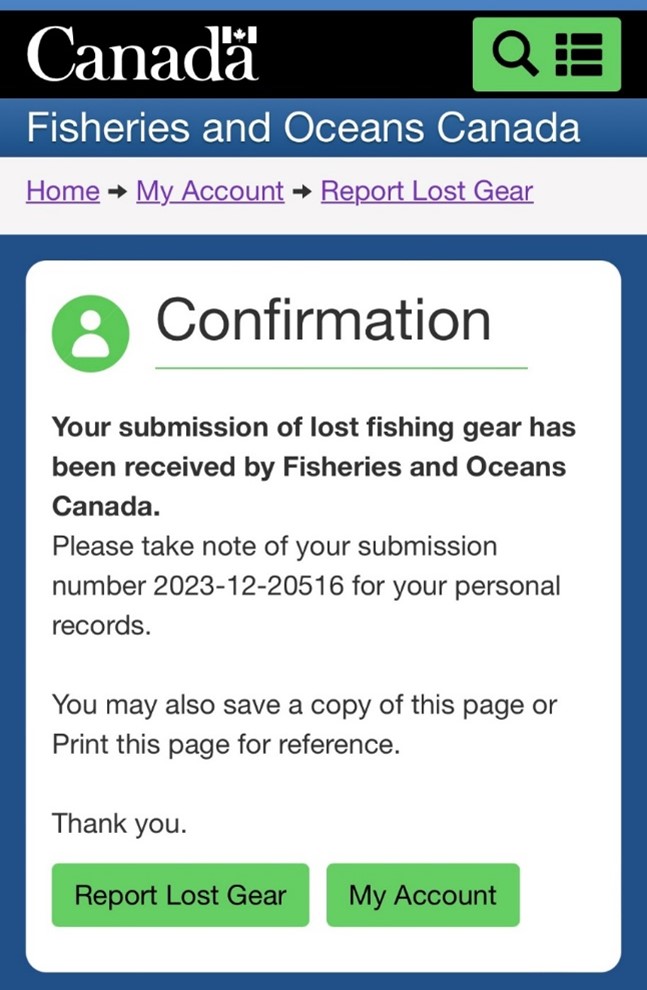
A confirmation page will appear once the report has been successfully submitted.
How to view your previously submitted reports
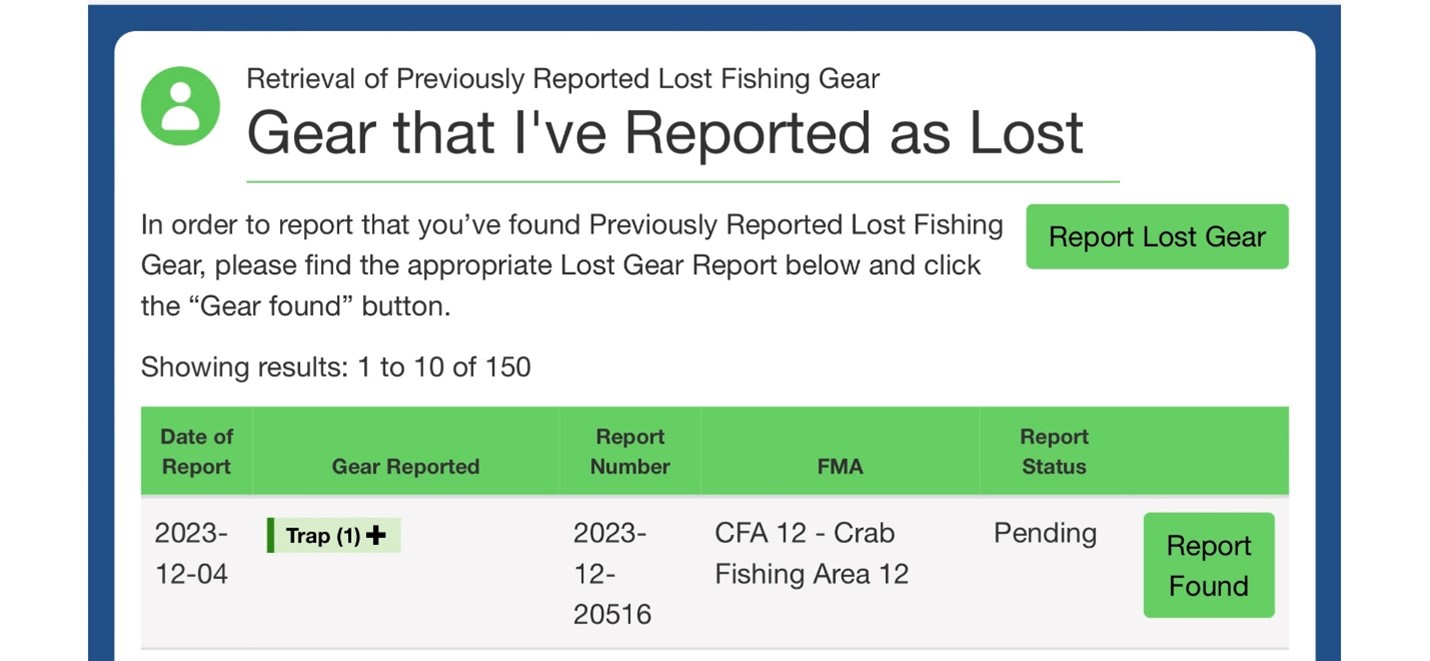
To check all saved reports have been successfully submitted, go to the My Account page > View Previous Reports. Please verify all lost gear reports that were submitted offline were successfully submitted Now that you are online.
If you encounter any issues, please send an email to DFO.LostandRetrievedGear-EnginsPerdusRecupere.MPO@dfo-mpo.gc.ca.
Page details
- Date modified: